View Mobile Profiles
In the Accounts module, you can view all mobile profiles that have been created for your organization. This list allows you to quickly assess the configuration and access settings assigned to each mobile user.
To view mobile profiles
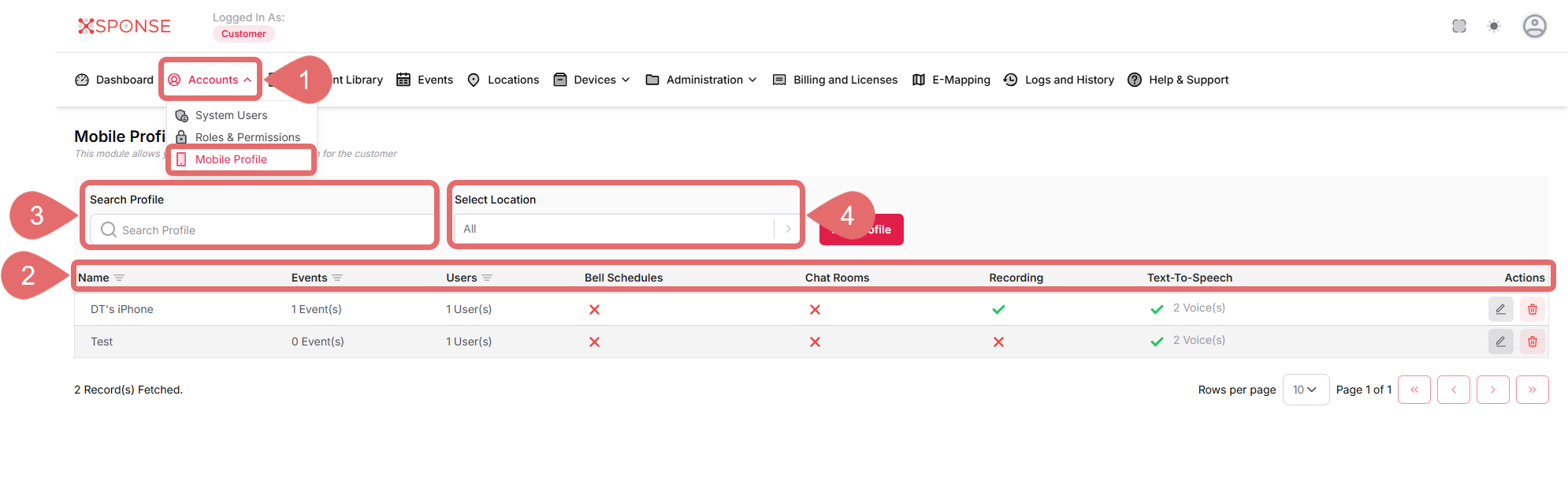
- Go to Accounts > Mobile Profile.
- The Mobile Profiles screen displays a list with the following columns:
- Name: The name assigned to the mobile profile.
- Events: Indicates how many event buttons are configured for that profile.
- Users: Number of users assigned to the profile.
- Bell Schedules: Shows if bell schedules are enabled or disabled.
- Chat Rooms: Shows if chat room access is enabled or disabled.
- Recording: Shows if the recording feature is enabled or disabled.
- Text-To-Speech: Indicates if text-to-speech is enabled and the number of voices configured.
- Actions: Includes options to update or delete the profile.
- Use the Search Profile bar to locate profiles by name.
- Use the Select Location dropdown to filter profiles by location.
TipUse the filters to quickly find and manage specific profiles, especially in organizations with many users.
See Also
To complement your knowledge of this process, check the following pages: